

Amazon orders, from confirmation to invoice, inside Odoo
Vendor Central purchase orders show up on their own, with the items already matched to your products. You confirm what you will ship, the sale is created ready and the shipment notice and invoice go back to Amazon automatically.
- Confirmation deadline under control
- Sale created with Amazon prices
- Invoice sent after the e-invoice
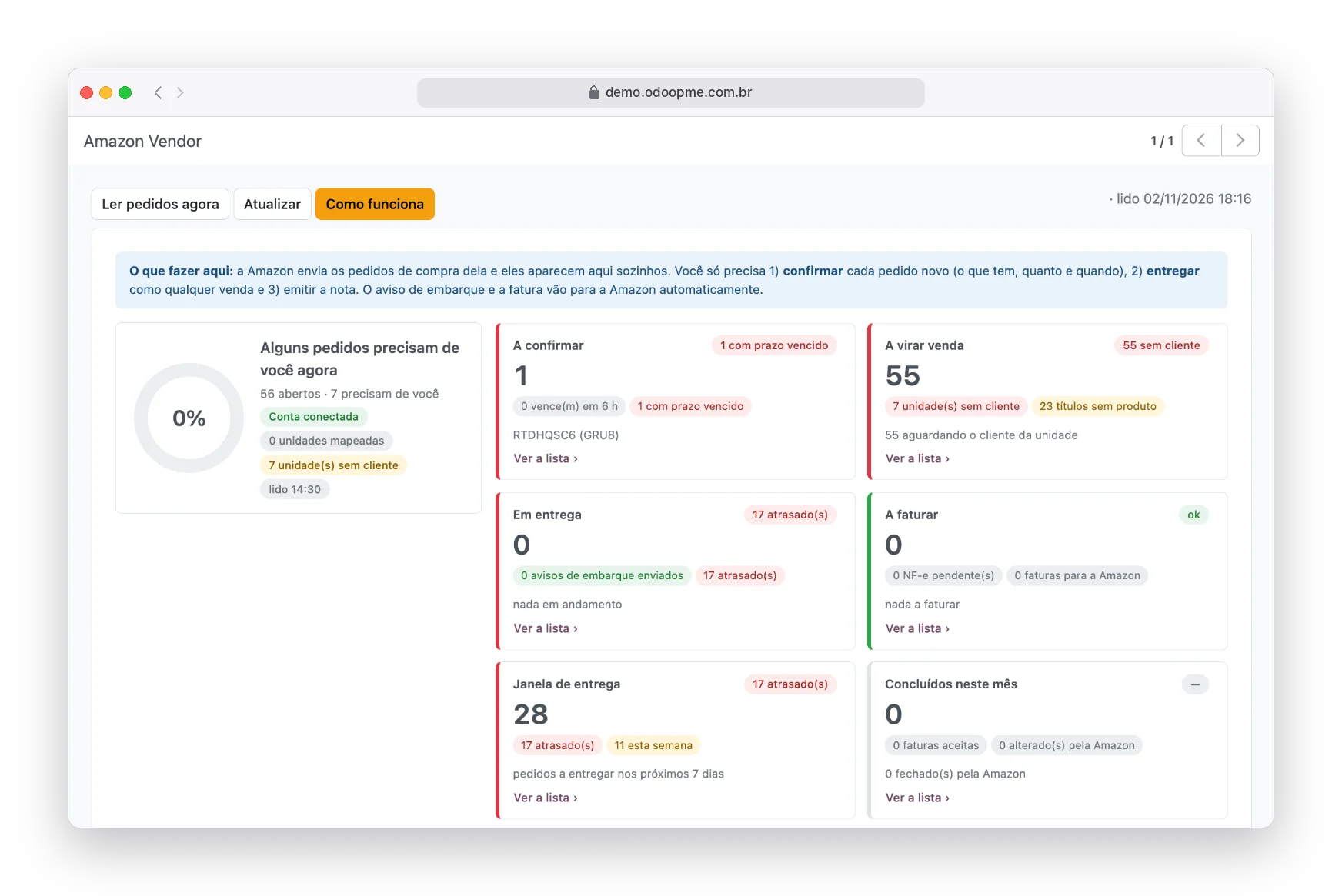
Real system screens with fictitious demo data.
Selling to Amazon cannot depend on opening the portal
In the Vendor model, Amazon buys and demands deadlines. Each order has a confirmation window, a delivery window and a different fulfillment center.
Deadline that expires silently
An order not confirmed in time is cancelled by Amazon, and nobody notices until the sale is missing.
Item by item against stock
Checking availability of dozens of items in the portal and the system, one by one.
Order retyped in the ERP
Each purchase order becomes, by hand, a sale to the right billing tax ID.
Invoice on hold
Shipment notice and invoice that do not match the order get stuck in the portal.
Six stages followed on a single screen
Order, confirmation, sale, delivery, e-invoice and invoice on Amazon. Odoo shows which stage each order is in and what is missing.
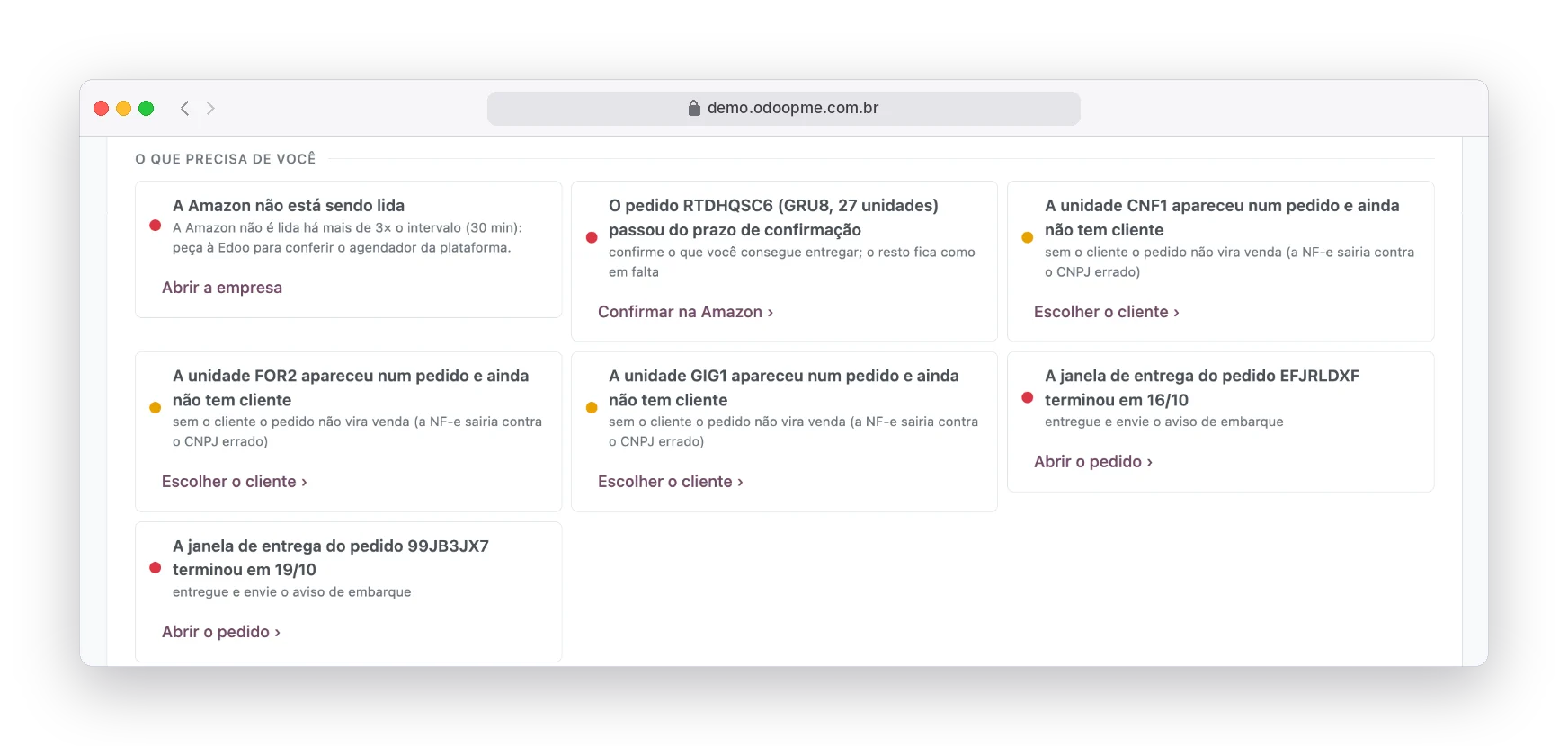
What needs you, in cards
The overview turns each pending item into a card with one action: confirm the order that is expiring, choose the customer of a new unit, open the order with a late window.
- Orders expiring in the next hours
- Units without billing customer
- Delivery window for the next 7 days
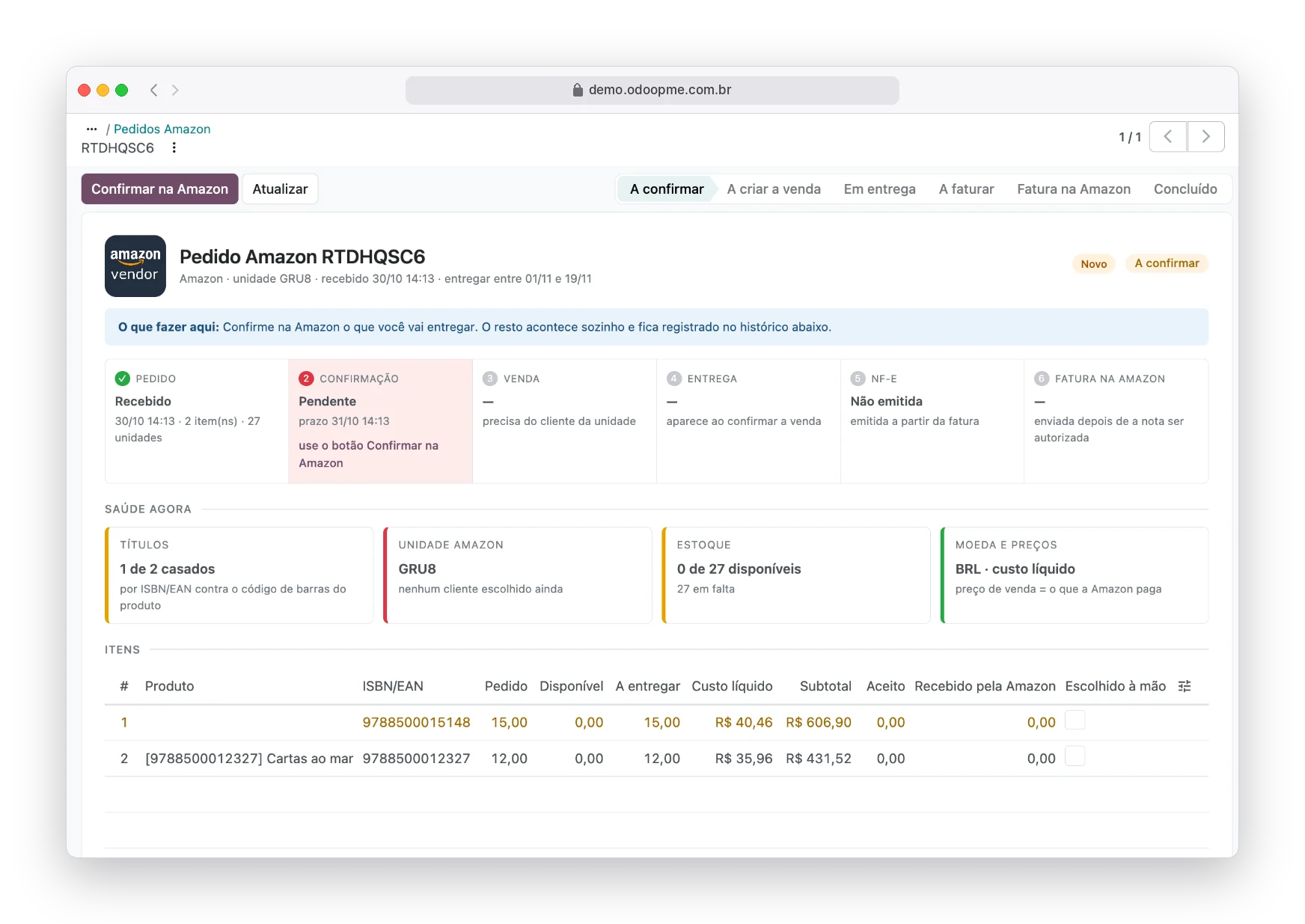
The order with timeline and health
Each order shows the six stages, how many items were matched by ISBN/EAN, available stock and the Amazon unit. An item without a product is highlighted for you to choose.
- Confirmation per item: accepted, backordered, not carried
- Quantity suggested from stock
- Amazon changes never rewrite the sale
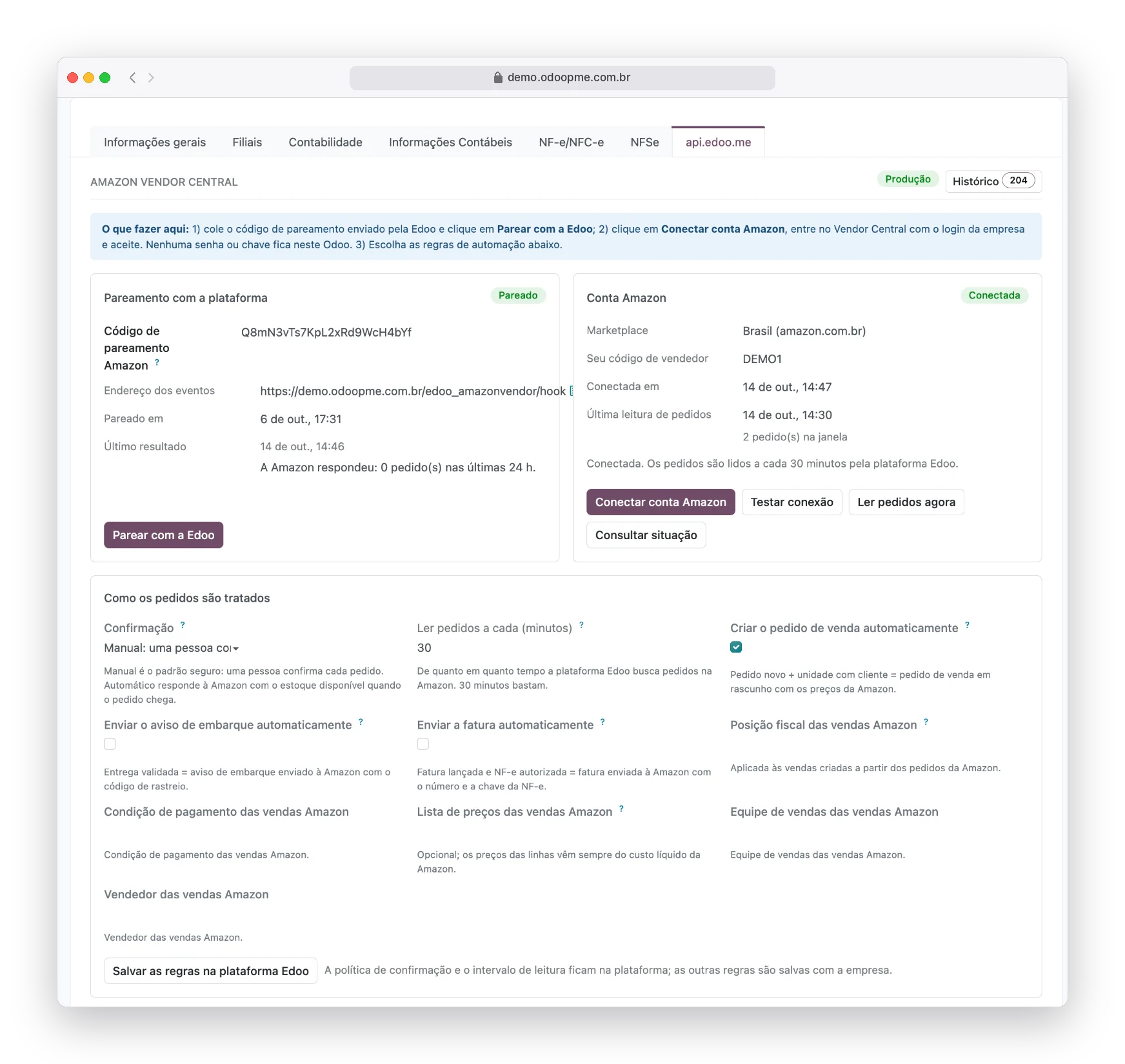
Automation rules your way
You connect the Amazon account through Vendor Central itself and choose: manual or automatic confirmation, draft sale, shipment notice when the delivery is validated and invoice after the e-invoice is authorized.
- No Amazon password in Odoo
- Reading every 30 minutes
- Default fiscal position and terms
All orders, with the next step
The list shows the unit, delivery window, units, total, stage and, in one sentence, what is missing for the order to move.
- Amazon cancellations arrive on their own
- History of every Amazon response
- E-invoice linked to the order
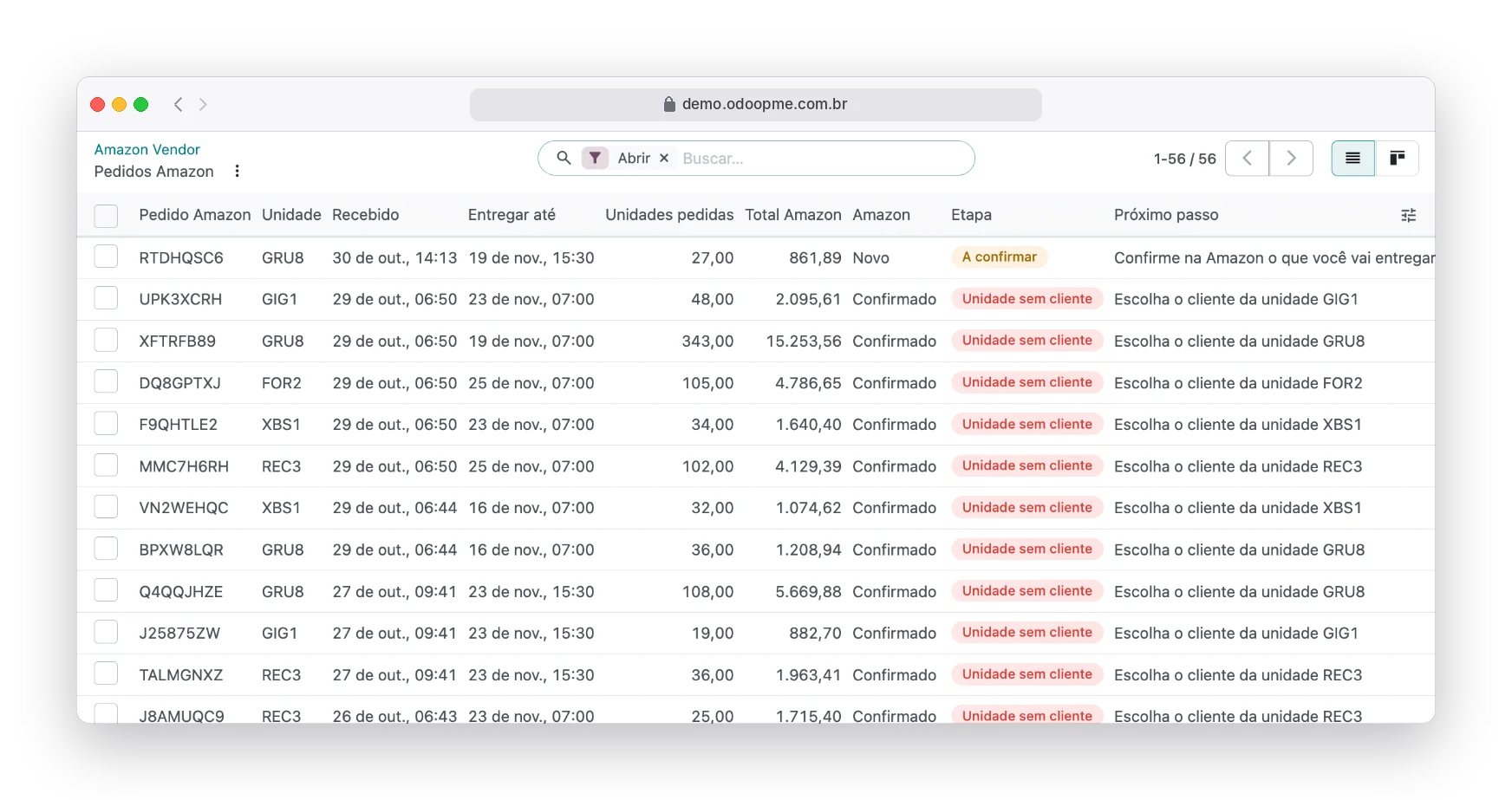
Every Amazon order under control
No missed deadline
Expiring orders show up in red before Amazon cancels.
Sale ready
Sales order created with Amazon net cost and the unit’s customer.
Right tax ID on the invoice
Each Amazon code is linked once to the billing customer and address.
Portal closed
Confirmation, shipment notice and invoice leave from inside Odoo.
Stock in the decision
The suggested quantity comes from stock available at the moment.
Everything recorded
Every submission and every Amazon response stays in the order history.
The same operation, a different day to day
Without the integration
- Deadline that expires silently
- Item by item against stock
- Order retyped in the ERP
- Invoice on hold
With the Edoo integration
- No missed deadline
- Sale ready
- Right tax ID on the invoice
- Portal closed
Clear up your questions
Complete step by step, with the screens
The official documentation shows every setting, field and status of the integration, for your team to check whenever they want.
Open the official documentationDo I need to give Edoo the Vendor Central password?
No. You authorize access yourself through Vendor Central. The authorization stays on the platform and can be revoked by you.
Can the confirmation be automatic?
Yes: the system replies with available stock when the order arrives. We recommend starting manual until stock is reliable.
Why does an order stay in "Unit without customer"?
Because that order’s Amazon code has no billing customer yet. Once chosen, it applies to every following order.
When does the invoice go to Amazon?
After the invoice is posted and the e-invoice is authorized, with the invoice number and key.
Connect as well



Shall we bring Amazon out of the portal and into your Odoo?
Tell us how your operation works today. An Edoo specialist shows the integration running and what changes in your routine.
Shopify, Amazon, Amazon Vendor Central, WinBooks, WBS Tecnologia and BookInfo are trademarks of their respective owners, used here only to identify the integrations.