
This week, while preparing a customer's upgrade from Odoo 17 to 20, we ran a count nobody needed before: how many active employees have no user in the system. The database had 26 users. Employees without an internal user: 51.
In Odoo 17, those 51 records cost nothing. In Odoo Enterprise 20, each of them counts as a Light User, a new license type. The person does not need to log in or have a password. Being an active employee is enough.
If you use the Employees app for payroll, attendance, time off or expenses, read this carefully. Below we explain what changed, show on demo.odoo.com screens how to find these records, and what to do before you schedule the upgrade.
- What exactly is a Light User?
- Why does an employee who never logs in become a license?
- How do you find out how many employees have no user?
- How do you know whether a specific employee is in this situation?
- Where can you see who is Light, User and Administrator?
- What turns a Light into a full user without you noticing?
- Checklist before upgrading from Odoo 17 (or 18, 19) to 20
- Frequently asked questions
What exactly is a Light User?
Odoo 20 introduced a third access type. On the user form, the Role field now has three options: Light, User and Administrator.
Light is meant for people who only handle their own things inside the company:
- request time off and check their balance;
- submit expenses and check in and out;
- see their own payslip and fill in their own appraisal;
- check their own shifts in Planning;
- run the Point of Sale with a PIN or scan barcodes in the warehouse;
- read Knowledge articles.
In exchange for the limited access, the price is much lower than a regular user. On the public US price list, Light shows at US$ 8.90 per month (billed yearly), against US$ 31.10 for a user on the Standard plan. The price in your currency depends on your contract with Odoo, which is why we recommend confirming it with your account manager.
Why does an employee who never logs in become a license?
This is the part that surprised many people. The Odoo 20 Enterprise Subscription Agreement defines two things as a Light User:
- any account set as Light in the software;
- any active employee in the Employees app who is not linked to an active internal user.
Note that Odoo does not create a hidden user for that employee. The record stays an employee, with no login. But for licensing purposes it already counts as a Light User.
In practice, these count:
- an active employee with no user linked;
- an employee whose user was archived;
- an employee linked only to a portal user.
These do not: archived employees, and employees linked to an active internal user (Light, User or Administrator), who are counted once, through the user.
A detail few people notice: you are not the one reporting this number. We looked at the Odoo 20 source code, and the daily routine the database uses to talk to Odoo about the subscription now sends the number of active employees without an internal user. In version 17 this information did not exist.
How do you find out how many employees have no user?
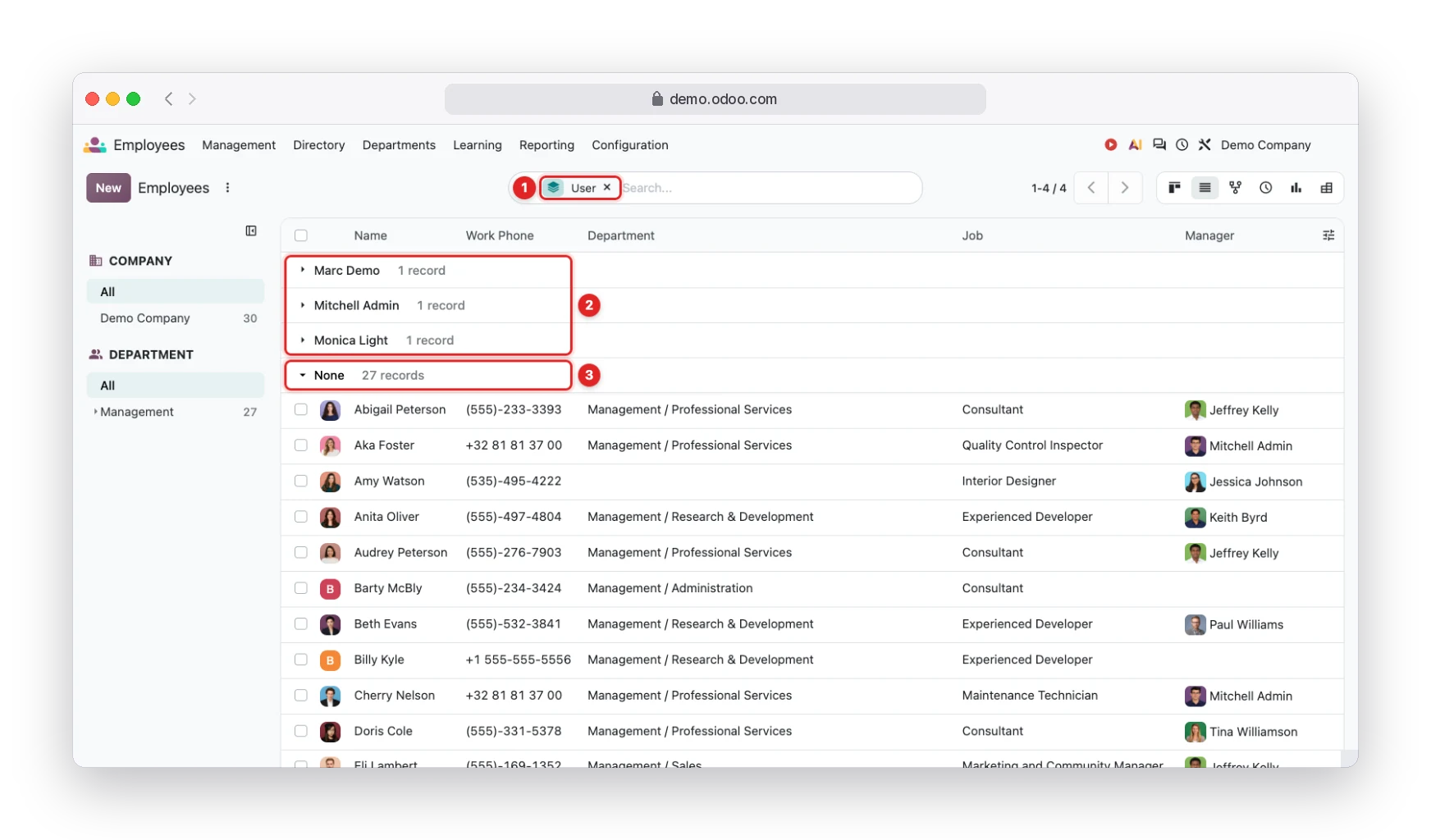
- 1In the search, use Group By › Custom Group › User.
- 2Employees who already have a linked user. These change nothing.
- 3The None group: in the demo, 27 records that count as Light Users.
Open the Employees app, switch to list view and group by User (1). Odoo separates who has a login from who does not.
On demo.odoo.com, the demo company has 5 internal users and 27 employees in the None group (3). In other words, from HR records alone, the database would have 27 more Light Users than the user count suggests.
One point of attention: employees linked to portal users show up under the user's name in the top groups (2), but they also count as Light. To check, go to Settings › Users & Companies › Users and filter by Portal Users.
How do you know whether a specific employee is in this situation?
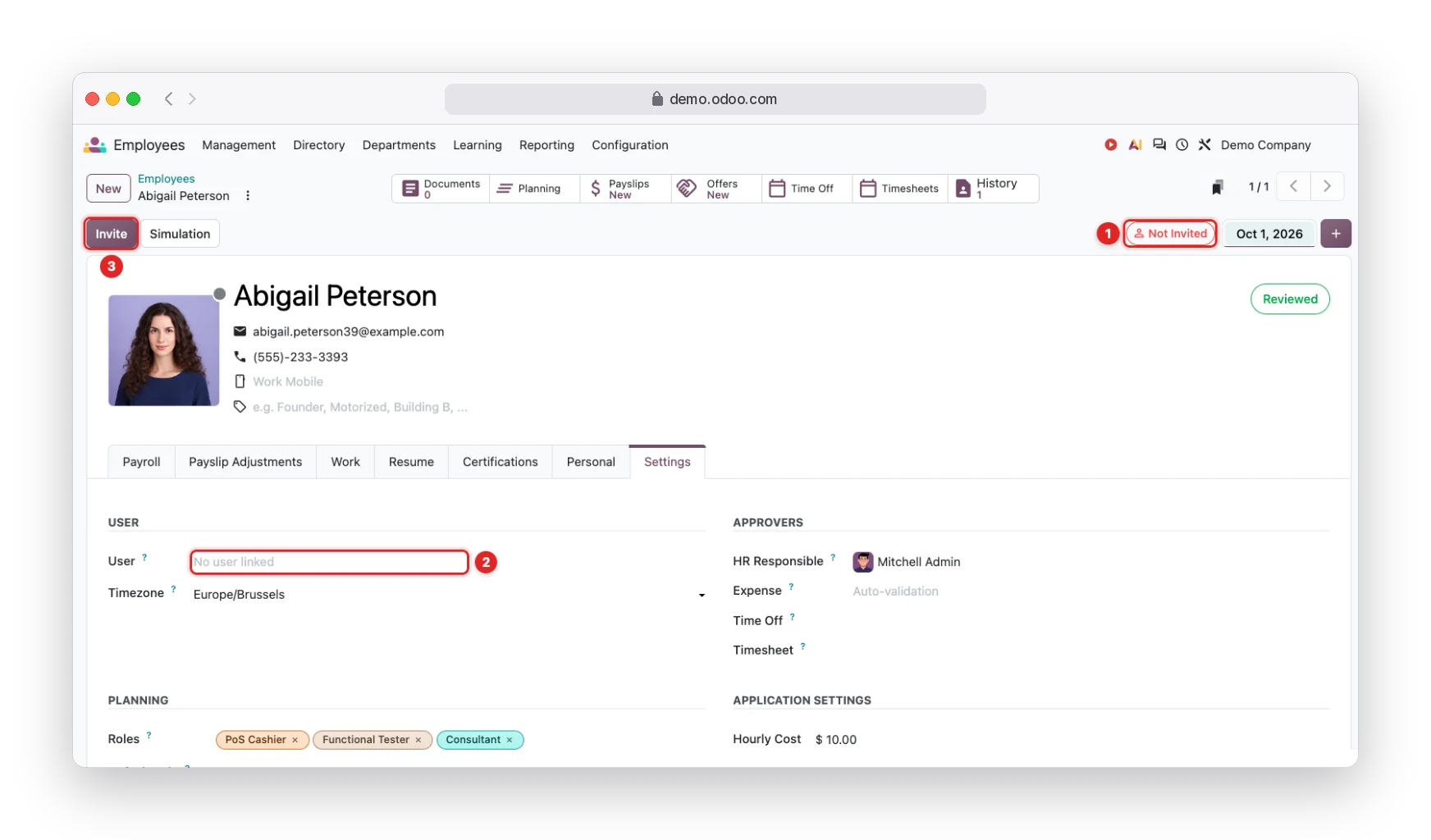
- 1The Not Invited badge at the top of the form gives it away: there is no user.
- 2On the Settings tab, the User field shows "No user linked".
- 3The Invite button creates a Light user for the person and emails the invitation.
On the form, Odoo 20 shows the status right at the top (1). On the Settings tab, the empty User field confirms it (2).
Now look at the Invite button (3). It creates a user already set as Light, with no extra rights, and sends the access link to the employee's work email.
And here is the math that changes the conversation: giving a Light login does not increase the cost. The employee without a user is already billed as Light. Once invited, they are counted through the user, only once. If the company is paying anyway, it may be worth letting people request time off, submit expenses and see their payslip on their own, without going through HR.
Where can you see who is Light, User and Administrator?
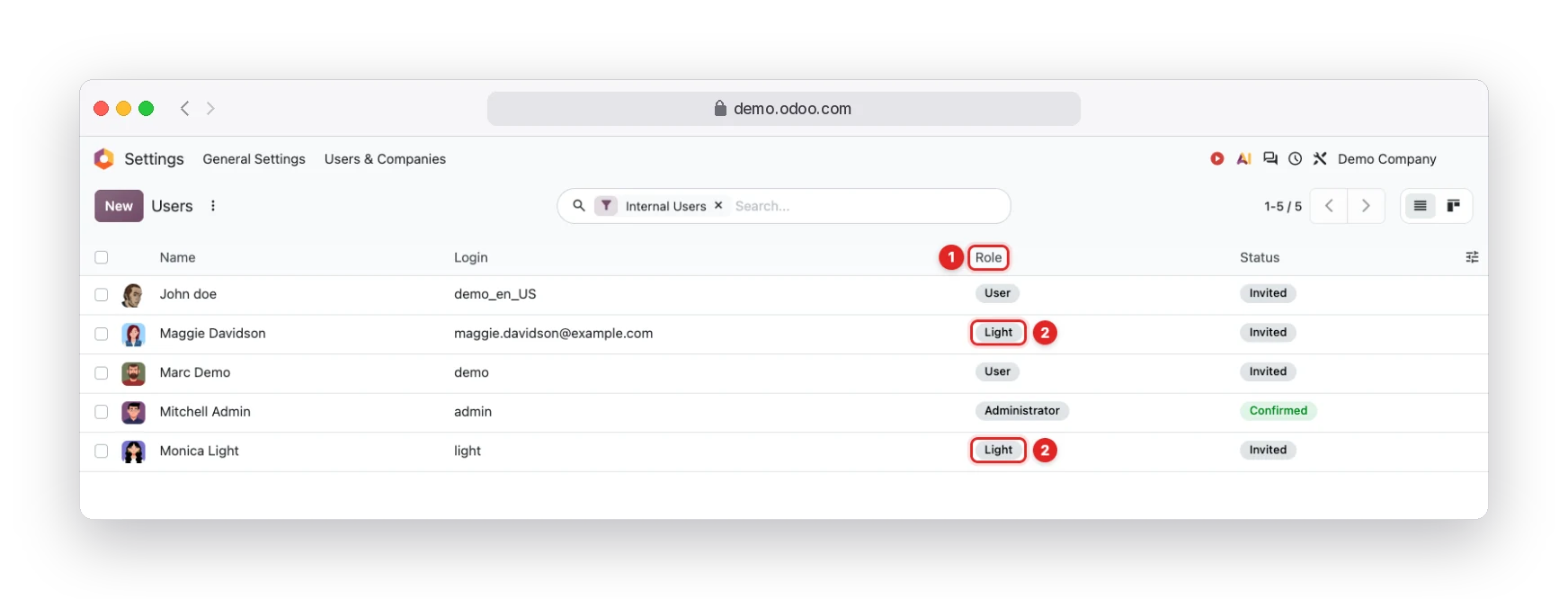
- 1The Role column, new in Odoo 20.
- 2Users with the Light role.
In Settings › Users & Companies › Users, the list now has a Role column (1). The demo has 2 Light users (2), 2 User and 1 Administrator.
Adding what we saw in the employee list, the demo count would be: 3 full users (2 User and 1 Administrator) and 29 Light Users (the 2 in the list plus the 27 employees without a user). It is worth running this same exercise on your database every month, not only at renewal.
What turns a Light into a full user without you noticing?
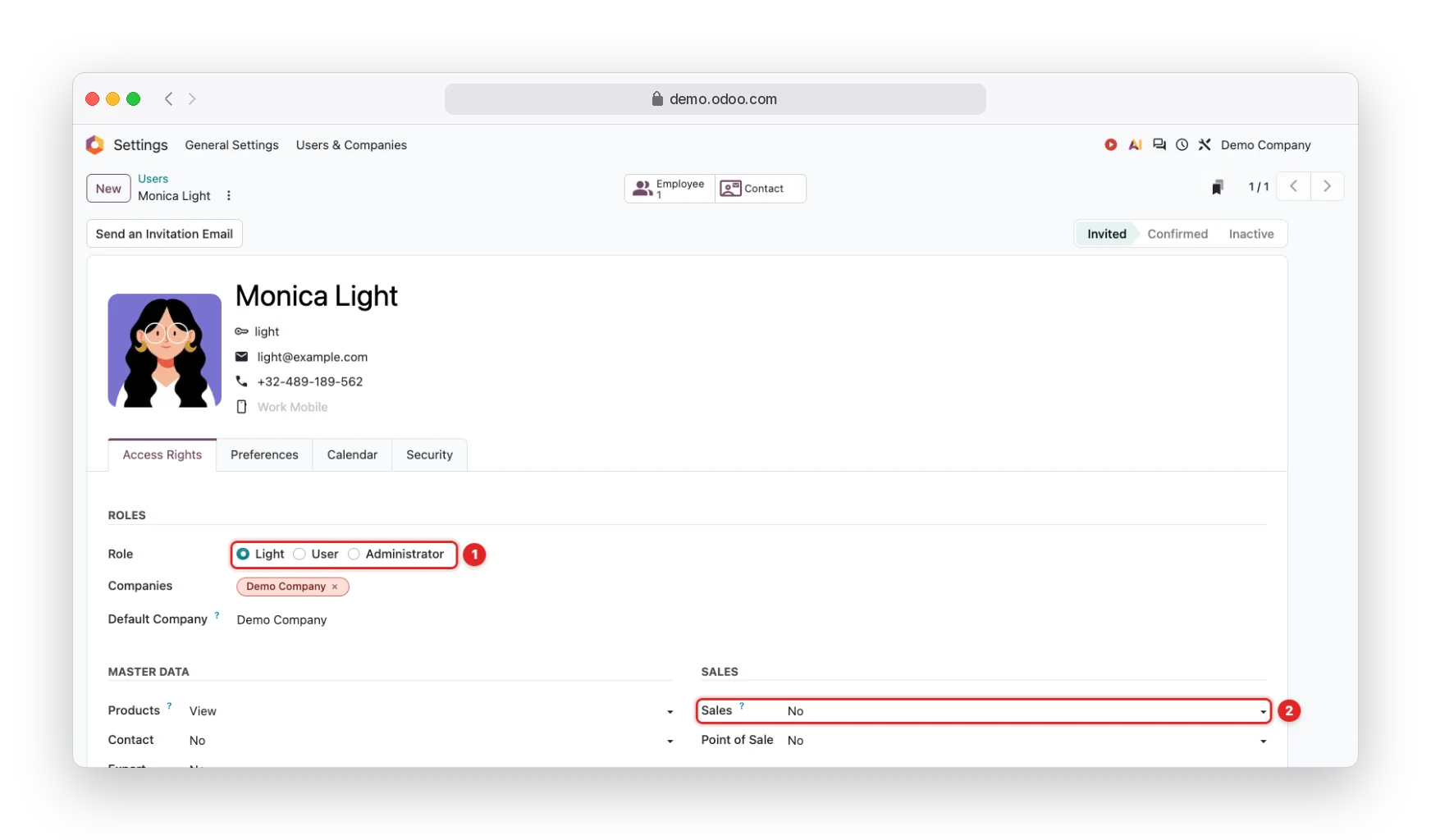
- 1The user Role: Light, User or Administrator.
- 2Any right outside the Light list, such as Sales, switches the role to User.
The role is not decided by the menus a person sees. Odoo looks at the sum of the user's access groups. If all of them are on the allowed list, the user is Light (1). Grant one right from outside, for example Sales (2), Purchase, Invoicing, Inventory or Timesheets, and the user becomes User, at full-user price.
Two precautions worth their weight in gold:
- Hiding a menu does not change the license. What counts is the access group, not the screen.
- Technicians who log hours in timesheets need to be User. Timesheets are not part of the Light package.
Checklist before upgrading from Odoo 17 (or 18, 19) to 20
- Archive people who left the company. Archived employees do not count, and payslip history is kept.
- Link the user to the employee when the person already has a login. A real trap we found: in multi-company databases, the same person has one employee record per company. If the user is linked to only one, the other record counts as Light. In the case we mentioned at the start, three directors with full users had a second loose record in the other company. To fix it: select the company, open the employee, Settings tab, User field. If the user does not show up, add that company to the user's allowed companies.
- Review employees linked to portal users. They count as Light, even if they only use the portal.
- Decide who gets a Light login. Since the cost already exists, consider who would gain autonomy with time off, expenses and attendance.
- Do not try to fix it by archiving active people. If the person gets a payslip, checks in or submits expenses in Odoo, the record must exist.
- Talk to your Odoo account manager before the upgrade: Light price in your currency, whether billing starts at the upgrade or at renewal, and how it works for Odoo.sh databases.
Frequently asked questions
Does an archived employee count as a Light User?
No. The agreement refers to active employees. Archiving people who already left is the first cleanup to do.
Does turning the employee into a portal user solve it?
No. An employee linked only to a portal user still counts as a Light User.
Do Odoo 17 customers already pay for this?
No. The rule applies from Odoo 20 onward. It applies to your database once you upgrade.
Does giving an employee a Light login increase the bill?
No. An active employee without a user already counts as one Light. With the login, they are counted only once, through the Light user.
Can a Light User create invoices or sales orders?
No. Sales, purchase, invoicing and configuration require the User role. When those rights are granted, Odoo switches the role automatically.
Our take: the change weighs little on office-based companies, where almost every employee is already a user. It weighs a lot on manufacturing, construction, field services and retail, where many people are on the payroll and few use the system. Before you schedule the upgrade to 20, count the None group. If you prefer, we can run this review on your database: just open a ticket in our help center.
Real screens from demo.odoo.com (Odoo Enterprise 20) with demo data.
Official sources: Odoo 20 Enterprise Subscription Agreement · Roles and access rights documentation · Odoo pricing
Odoo 20 licensing: the Light User and the employee who now counts